
Piso WiFi is very popular for its affordable rates and pause time feature. The Piso WiFi Pause Time feature allows users to pause their internet session temporarily and resume it later at their convenience.
The experienced users already know how to pause time in Piso WiFi and how to resume time in Piso WiFi but the new users don’t know about it. The new users should learn how to pause Piso WiFi Vendo Machine during a session.
The vending machine owner has full control over Piso WiFi Vendo Machine. The owner can access Piso WiFi Admin Settings via its IP Address to enable pause time for Piso WiFi users, set pause limit and manage other settings.
Here I am going to explain all key information about how to pause time in Piso WiFi for users and how to enable pause time in Piso WiFi Vendo Machine for Owners/Admins in easy words.
How to Pause Time in Piso WiFi [for Users]
In order to pause time in Piso WiFi, the user must have a mobile phone (or other device) that is connected to Piso WiFi. In addition, the user needs to open Piso WiFi IP Address 10.0.0.1 in a web browser and insert coins to start the internet session. Once the session timer starts running, the user will be able to access pause time feature.
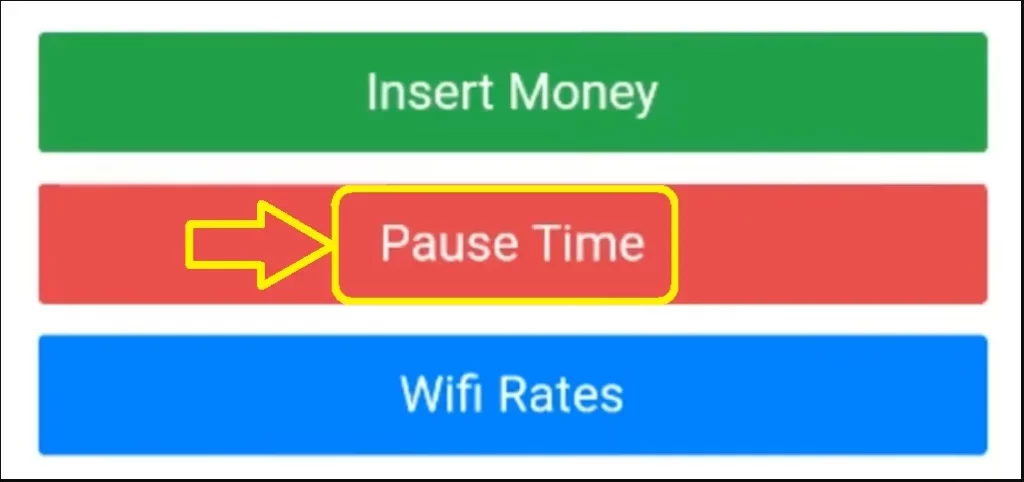
- Open a browser and go to Piso WiFi IP 10.0.0.1.
- If the session is not active, select Insert Coins/Money, insert coins in vending machine and select your pack to start the session. If the session is active, the Pause Time feature will appear on screen.
- Just click on Pause Time button to proceed.
- As you click on Pause Time, the session timer will be paused immediately.
In case the Piso WiFi Session Timer does not stop even after you clicked on Pause Time button, you should inform the vending machine owner/admin to fix the issue.
How to Resume Time in Piso WiFi [for Users]
The Piso WiFi Resume Time is exact opposite of the pause time feature. When the user clicks on Pause Time, the internet session timer stops and the remaining minutes are kept for later use. On the other hand, when the user clicks on Resume Time, the session timer starts running again and the user becomes able to access the internet again.
To resume time on Piso WiFi, the user needs to connect the same device to Piso WiFi and follow the steps given here_
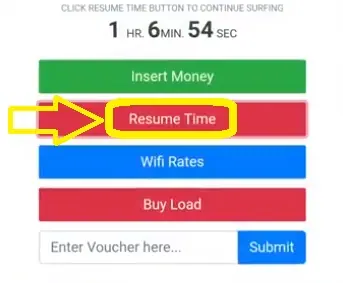
- In a browser, go to Piso WiFi IP 10.0.0.1.
- Find and click on Resume Time button to proceed.
- As you click on Resume Time, the session timer will start running and you will get access to the internet.
In this way, the user can save their valuable time and money by learning how to pause time in Piso WiFi from the simple guide given above. The user can also resume time to use their remaining minutes for browsing internet.
How to Pause Time in Piso WiFi Vendo Machine
The vending machine owners can configure all settings in Piso WiFi Vendo Machine. The owners must login to Piso WiFi Admin Page to enable pause time, set pause time validity and adjust minimum and maximum time allowed to pause in one internet session.
The Piso WiFi User can access pause time, resume time and other features only if the owner has enabled them in Admin Settings. Here I provide a step-by-step guide regarding how the owner can enable pause time in Piso WiFi Vendo Machine for the users.
- Connect your mobile/laptop to the Piso WiFi.
- Open a web browser and go to Admin Page IP 10.0.0.1/admin.
- Sign in with the Admin Username & Password (check the user manual for default login credentials or contact the vending machine provider to know the username & password).
- After successful login, go to Settings>Portal Settings>WiFi Options and then select Time Setting option.
- It is possible that the setting menu can be different in different vending machines due to change in firmware and customized software. You can find Advanced Settings or System Settings and select User/Session Settings to find pause time related options.
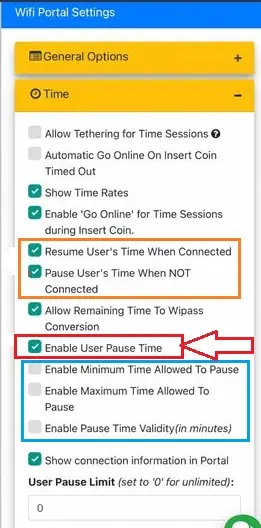
- Under Session/Time Settings, you can enable User Pause Time option to make it available for Piso WiFi users connected to your vending machine.
- You can also enable Minimum Time Allowed Pause, Maximum Time Allowed to Pause, Pause Time Validity, Automatic Pause User’s Time When Not Connected and Automatic Resume User’s Time When Connected.
- After enabling Piso WiFi Pause Time and related options, click on Save/Submit button to confirm.
- Restart the Piso WiFi Vendo Machine if needed to apply new settings.
- Connect a user to check if the pause time feature is enabled and it’s working properly.
In this way, the owner can configure user pause time option(s) in Piso WiFi Admin Settings.
Piso WiFi Pause Time Errors and Solutions
The Piso WiFi Users can face errors related to pause time when connected to a Piso WiFi Vendo Machine. Here I will share each error and its solution in brief.
Pause Time Not Showing
The pause time option is available for the user at Piso WiFi IP Address 10.0.0.1. The user must have an active internet session to use pause time feature. If the session is active but pause time button is not showing, the user must talk to the owner of Piso WiFi Vending Machine.
The owner can access Admin Settings to enable User Pause Time feature. In case the owner has already enabled it yet it’s not showing, the owner should update router firmware and reboot the vending machine.
Pause Time Not Working
Recently, some Piso WiFi users have complained that they can view pause time button on their screen and but they cannot click on it. If the pause button is not working, the user must check the remaining time in session timer.
It is possible that the owner has set the pause time settings in a way that the user cannot pause time if the remaining session time is less than 15 minutes. The user should talk to the Piso WiFi owner to know the reason and fix it if it’s an error.
The owner can login to Piso WiFi Admin Panel to access User Pause Time Settings and adjust them as per their convenience.
Resume Time Not Showing
The user can pause time to take a break from internet session and do other work. Thereafter the user can reconnect the device to the Piso WiFi and click on Resume Time to continue the session. If the user cannot find Resume Time button, it can happen due to various causes.
- The user must reconnect the same device that they used previously. If the device is changed, the Piso WiFi System may not recognize it due to changed IP Address.
- The user must come back before the pause time limit/validity expires. When the user click on Pause Time, the Piso WiFi System will show up the limit/validity details. If the user fails to reconnect in given limit, the resume time option will no longer available for them.
- If the device is same and the pause time limit/validity is not over still the Resume Time option is not showing then the user must ask the owner to fix the error.
Inserted Coins Not Detected
The Piso WiFi Vendo Machine has a coin slot where the user can insert coins to buy internet minutes. After connecting the device to Piso WiFi and click on Insert Coins/Money button, the user should insert coins and the vending machine must detect the coins.
In case the user has inserted several coins the machine has not detected them, the user must complain about this issue to the owner.
The owner must check it personally and try to fix the issue by rebooting the vending machine or clearing the coin slot jam (if any). If these solutions don’t work, the owner must call up the Piso WiFi Vendo Machine Service Provider to send a technician to resolve the issue ASAP.
So, there can be pause time errors sometimes with Piso WiFi Vendo Machine, the user and the owner must work together to find and fix these errors to have a smooth internet access experience.
Summary:
The Piso WiFi Vendo Machine comes with various features like pause time, resume time, insert coins/money and many more. The owner can access User Pause Time Settings at Piso WiFi Admin Panel and the user can use pause time option during an ongoing session on their device connected to Piso WiFi.
I have explained how to pause time on Piso WiFi for users, how to enable user pause time for owners/admins and shared Piso WiFi Pause Time Errors and their possible solutions. In case you still have a query, feel free to ask it in the comment section.
FAQs
Can I pause time on Piso WiFi?
Yes, you can pause time on Piso WiFi during an active internet session.
How do I pause time on Piso WiFi?
You can pause time on Piso WiFi on its IP Address 10.0.0.1, open it on your device browser and click on Pause Time button.
How can I resume time on Piso WiFi?
Connect the device to Piso WiFi, go to 10.0.0.1 IP Address in a browser and click on Resume Time button to start using the internet. Make sure that you connect the same device that you previously used to pause time on Piso WiFi otherwise you may not find the resume time option.
What is Piso WiFi Pause Time Limit?
The Piso WiFi Pause Time Limit is 30 minutes to 60 minutes or more as selected by the Piso WiFi Vendo Machine Owner/Admin.
How long is Piso WiFi Pause Time Validity?
The Piso WiFi Pause Time Validity is 1 day (24 hours) to 3 days (72 hours) as set by the Piso WiFi Vendo Machine Owner/Admin.