
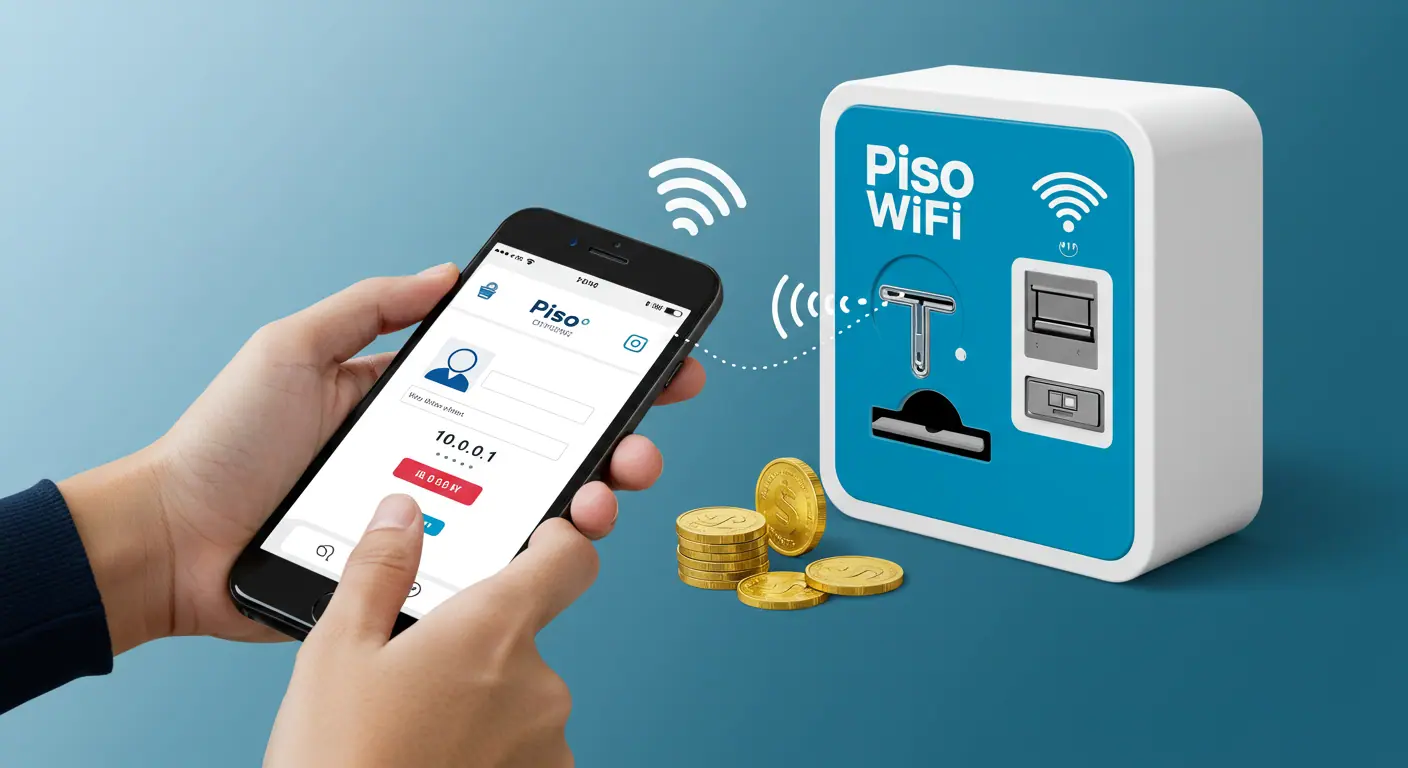
Piso WiFi is a high speed internet service provider in the Philippines. It offers time based internet packs to the users to provide best value for their money.
The Piso WiFi Network is connected to a vending machine called Piso WiFi Vendo Machine. The user needs to connect their device to the Piso WiFi Network and buy internet time by inserting coins in the vending machine or entering a voucher code or using an online payment system.
Some vending machines have e-payment system. The users can make online payment from a digital wallet to buy internet time on Piso WiFi.
How to Connect Piso WiFi
Connecting Piso WiFi to any device is quite simple. The user just need a WiFi enabled device and some money (Peso coins) or a voucher. Here I provide a complete guide on how to connect Piso WiFi to any device in the Philippines.
#Step 1: Visit a Piso WiFi Shop/Cafe/Outlet
First of all, you should find a Piso WiFi Shop nearby your place and visit it. Please carry your mobile/laptop device that you want to connect to Piso WiFi.
#Step 2: Turn On WiFi on Your Device and Connect to Piso WiFi Network
As you reach the shop, turn on WiFi on your device and look for the available networks. Select Piso WiFi Network Name (e.g. PisoFi or Piso_WiFi123) to connect your device.
#Step 3: Go to Piso WiFi Portal 10.0.0.1
Open a web browser on your device and go to Piso WiFi Portal 10.0.0.1. Wait for the Piso WiFi User Page to appear on screen.
#Step 4: Check WiFi Rates and Select Payment Option
Now, click on WiFi Rates to know how many Peso you need to pay your desired internet time in minutes/hours. For example: The Piso WiFi Rates may show 1 Peso for 15 Minutes, 2 Peso for 1 Hour, 5 Peso for 3 Hours and so on.
After checking Piso WiFi Rates, you should choose your payment option.
- You can either choose Insert Coins/Money to buy internet time by inserting coins in the Piso WiFi Vendo Machine.
- If you have a voucher/WiPass, you can enter the Piso WiFi Voucher Code in the given box and submit it.
- In case the vending machine has Online Payment option, select it and pay money via a digital wallet like PayMaya or GCash.
#Step 5: Complete Payment to Proceed
Choose your desired payment option and complete the payment to proceed. You cannot browse internet until the Piso WiFi Vendo Machine detects your payment.
#Step 6: Start Browsing Internet on Your Device
Once, the vending machine confirms that your payment is successful, your internet session timer will start running. You can start browsing internet on your device. You can access social media apps, check emails and access any website or stream videos without any data limit.
Your internet session time will keep running, you can use unlimited internet as long as your session is active. Once your session time is over, your device will be disconnected from internet automatically.
You can pause time if you need a break during an active session, it will put the session on hold. You can resume time to reconnect your device and access internet, the session timer will start running again.
Troubleshooting Can’t Connect Piso WiFi
When trying to connect Piso WiFi Network, the user may face a random error or issue, here I provide such issues and their fixes in brief.
10.0.0.1 Piso WiFi Portal Does Not Open
If 10.0.0.1 does not load, it means that your device is connected to the wrong network. Make sure that your device is connected to the Piso WiFi Network only. If it still can’t load Piso WiFi Portal, talk to the owner about it.
Insert Coins Button Not Working
On Piso WiFi Portal 10.0.0.1, you need to click on Insert Coins/Money button to load money for buying internet time. If the Insert Coins button is not working, you should try to open 10.0.0.1 in Incognito/Private Mode to make Insert Coins button work.
Voucher Code Rejected
You can buy internet time on Piso WiFi by entering a voucher code. Make sure that you enter the voucher code correctly with all – or other symbols. In case the voucher code is incorrect or expired, the Piso WiFi Vendo Machine will reject the voucher code. So, be careful when entering the voucher code.
Coins Not Detected
Sometimes, the Piso WiFi Vendo Machine does not detect the inserted coins. It can happen because either the coin slot is jammed or it has dirt/debris or the slot is misaligned. Kindly ask the owner to get the issue fixed and help you get your stuck coins back.
Final Words
Any individual with a WiFi enabled device can connect to Piso WiFi Network to buy internet time and enjoy high speed internet access. The Piso WiFi is a very popular internet service used across entire Philippines country.
To help you connect Piso WiFi easily, I have explained how you can connect Piso WiFi to any device. In case you face any problem, you can check troubleshooting tips shared above. For any doubt/query, please ask in the comment section.
FAQs
Can I connect Piso WiFi to my iPhone?
Yes, you can connect Piso WiFi to your iPhone or any other device with in-built WiFi feature.
How do I connect Piso WiFi to my laptop?
Go to a Piso WiFi Shop, turn on WiFi on your laptop and connect it to Piso WiFi Network. Then go to 10.0.0.1 in a web browser and insert coins or enter a voucher code to buy internet time and start browsing it.
Can I pay online to connect Piso WiFi?
Yes, you can pay online to connect Piso WiFi if the vending machine accepts online payment.
Can I connect Piso WiFi for free?
Yes, you can connect Piso WiFi for free if the owner has enabled Free Time Mode or Trial Mode from Admin Settings. The Piso WiFi Owner provides such promotional offers to attract new users.